
Search history
Clear allSearch by image
XDrag and drop an image here or upload an image
Max 5MB per image
UploadSign In | Join

Search history
Clear allSearch by image
XDrag and drop an image here or upload an image
Max 5MB per image
UploadSign In | Join
SHUOFENG ELECTYONIC TECHNOLGY CO.LTD 12yr.
Contacts Diana Chat
Mobile 18358005552
1048612396

WhatsApp 8618358005552
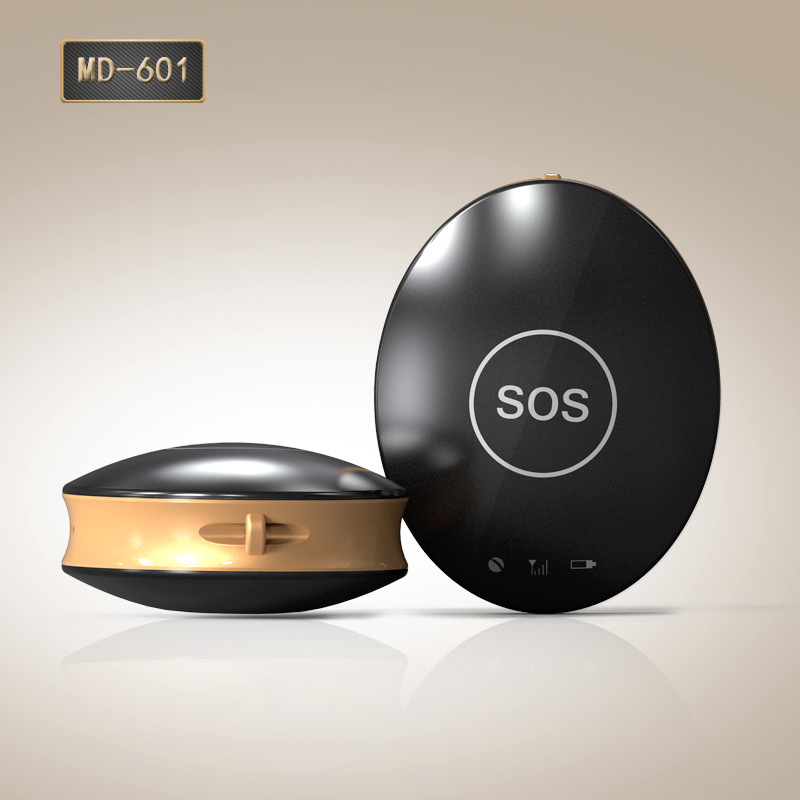
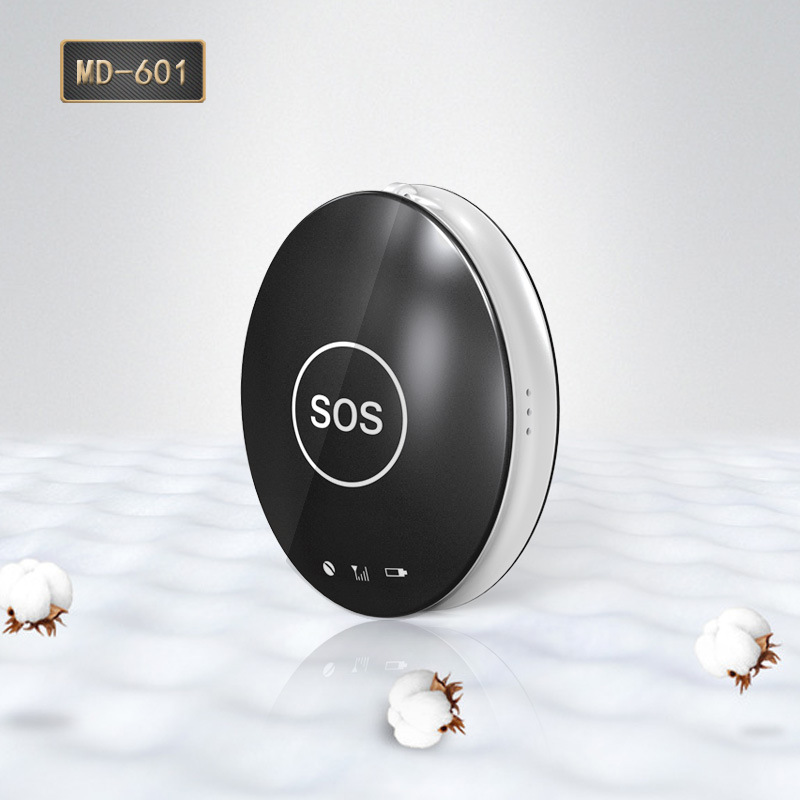
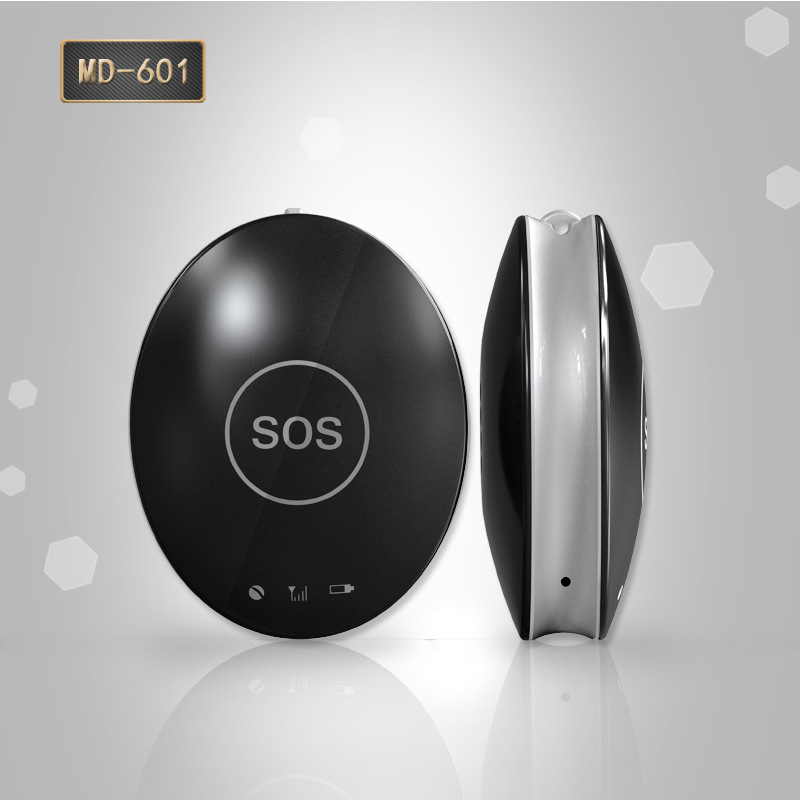
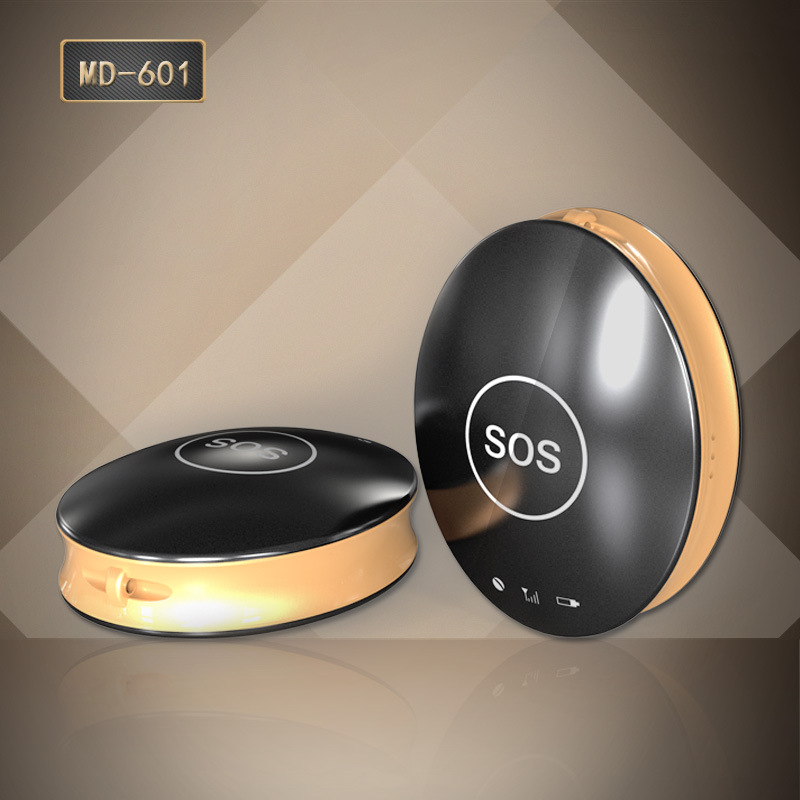
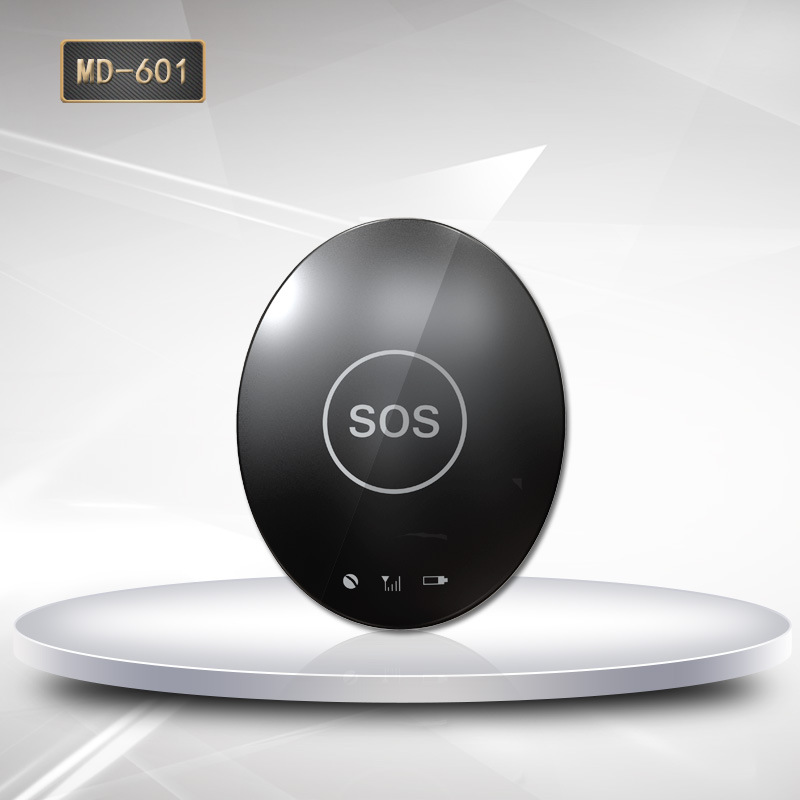

Please read the user manual carefully before use to ensure proper installation and quick operation. The product is subject to actual goods.
One, Preparation Before Use
Check if the model of the detection equipment is correct, and whether the accessories are complete.
ChooseGSMnetworkSIMInsert the card, refer to the dealer's suggestions. (Please turn off the device before inserting the card).
SIMThe card needs to be activated.GPRSFunction and call display feature.
Install on mobile phoneAPPThe client, the client details can be inquired from your distributor.
Two, Product Features
l Multiple positioning mode:GPS + AGPS + LBS + WIFI
l Global UniversalGSM+GPRSFour-frequency system:850/900/1800/1900MHz
l Time automatically updates: GPS accurate timekeeping, no need to adjust time manually
l Location Query: You can query the specific location of the user through a mobile APP or a computer.
l Electronic fence: Draw a region on the map centered on the device, and immediately report any entry or exit from the region.
l Historical Traces: Query the device's running traces within the past three months anytime and anywhere.
l SOSSOS: Press in case of emergency.SOSKey, that is, to send a distress call and information to the guardian.
l Pedometer: It can measure the walking data of the user.
l Reward: Rewards are issued through the guardian's mobile APP, and the progress of the reward can be viewed.
l Find equipment: If the equipment is lost, you can find it through the mobile phone APP.
l Alarm clock: Set through the guardian's mobile phone APP.
l Anti-disturbance Mode: Set a time range for no interruptions via the guardian's mobile APP, and the device will block voice and calls.
l Remote microphone pick-up: High-sensitivity microphones that can listen to the surrounding sound in real-time when an emergency situation arises.
l Remote Shutdown: The device shutdown function can be achieved through the guardian's mobile APP.
l Remote reboot: The device reboot function can be achieved through the guardian's mobile APP.
l Energy-saving Intelligence: Set time ranges through the guardian's mobile APP to turn on/off the device, GPS, and data upload.
Three, Client Operation Instructions
5.1 APPLogin
1.Need to pass through the equipmentIMEINumber和密码(出厂默认为123456)Manual input loginIMEIPlease refer to the side of the equipment for details.
2.Input SupervisionhumanName,Telephone number,Chooserepresenting oneself"图"在中文中通常指的是图形、图像或图表。如果您有特定的中文文本需要翻译,请提供,我将为您翻译成英文。like
Supervisor's NameSlashThe avatar is displayed in the conversation. The phone number is the remote listening number.
The interface is as follows::
5.2 APPFunction Menu
LoginDone, enter.FunctionMain Interface.
The interface is as follows:
Press Select the equipment that needs supervision.
Press The name on the left can be viewed and modified for the device details.
Press"+" - IncreaseSlashDelete Device
Function Description:
1andRemote microphone pickup:Set the supervision number, and after confirmation, the device will dial the number set actively. The device cannot hear the sound of the mobile phone, but the mobile phone can listen to the sound around the device.
2andInformation:
After various equipment alarms are triggered, the client will receive push notifications of the alarm information, and can enter the information function to view the alarm content.
3and定位:Real-time view of the device's location.
The map interface can display the device's location.Upload interval is set to the factory default.10minute。
When the icon isIt's base station positioning.YesGPSpositioningYesWIFIPositioning.
Press Change Map Mode
Press enterEnter FunctionSet
4trajectory:canlook up3Within the past month, the historical trajectory (green droplet) wasGPSBlue DropletLocation-Based ServicesPurple DropsWIFI)
5Safety RangeCan be set3Section of the safety range, the fence radius is100When a user moves from the fence to outside the fence (or vice versa), an alarm message with the corresponding name range will be generated.
6andFind equipmentThe device is not nearby, sending this command will make the device ring to help find it, and pressing the stop button will stop the ringing.
7andHealth:Record the Past7SkywalkingDataPlease provide the Chinese text you want to translate, and I will translate it into English for you.拖动Mobile Displayevery dayData
PressStep Counting Function of Switching Device, PressRefresh device step counting data
By mileageEnter Settings每步DistanceandWeight CalculationWalking distance and calories
8Alarm clockCan be set3An alarm clock, which can be set according to personal needs.
9andDo Not Disturb HourDuring this period, the equipment will block all phone and voice calls.
10Supervision number:can be set" 或者 "can be configuredequipment,SOSDad,MomNumber
11andAttendance:In setting the timeDuan??enterorLeave the mapWhere is the O placed?WIFI SSIDIt will send out an alarm push.Hint
12andwhite listCan be set47A list of phone numbers for devices that can be called.
New:Add NewContact Key
divide by:Long press to delete contacts
13andreward:Enter the reward goal and timesPlease provide the Chinese text you want to translate, and I will translate it into English for you.Give praise
14and"省"在英文中通常翻译为"province"。electricity:You can choose to turn on/off GPS positioning, and set a specific time to turn off data uploading.
15、Remote weightQi:When an abnormal device is found, it can be restarted.
16Remote Shutdown: The device can be shut down, and it must be manually started after shutting down to proceed to the next step.
17SettingSet up the equipment.
FourthDevice-related Usage Instructions
4.1Button
1.Long press3Power on instantly, long press without card3Power off instantly, long press after inserting the card.9Seconds Off
2.After inserting the card and powering on, long-press.3secondSOSEmergency Alarm
3.When the related phone call comes in, the ring will sound. Press briefly to answer, and press briefly again to hang up.
4.Press the snooze button briefly to stop the alarm.
4.2 LedLamp
Red light: Charging always on, low battery flash quickly, normal slow flash, standby completely off
Yellow light: Device SIM card signal detection, normal slow flash, no signal flash.
Blue light: Device can receive GPS signal, normal slow flash, no signal flash.
4.3Equipment SOS Emergency Alarm
After inserting the card, standby.Long pressSOSKey3Second, loop dial3个Supervision NumberOne round. If the phone is connected in the middle, it will not continue to dial, and if it is not answered, it will continue to dial until the end of the round. At the same time, giveAPPSend an alarm notification.
4.4Factory default password
Edit the text message" pwrst "to the device number to restore the factory password. The device replies with a text message" Clear password success ".
4.5Restore to factory settings
Edit the text message '1122' and send it to the device's number. The device will automatically reboot and send a text message 'Factory reset successful'.
4.6Modify the upload interval for positioning
Edit SMS" time#+数字 "(time#1 can be set to 1-60 minutes) to the device number, reply with "time#+数字
Fault Diagnosis and Troubleshooting
Device cannot connect to the server after power-on, and the app sends instructions showing that the device is not connected to the internet. Please check:
1)Check if the SIM card is correctly inserted into the device.
2)Does the SIM in the device support GSM networks, such as those from telecom operators, which it doesn't support.
3)Is the SIM card in the device activated for data traffic? It must be compatible with 2G network data traffic. The device currently can only use 2G data traffic.
4)IMEIWhether it is correct, it must be guaranteed that the IMEI barcode pasted on the device is consistent with the IMEI written into the device at the factory.
Sixth, QR Code Scanning Entrance
Scan the QR code to download for Android and iOSMobile client
Android apps and iOS apps
Service Platform:www.365gps.net
Android application: 365gps
Apple application: 365gps
9.Remote management
Customers can directly manage and view the location of their devices through online and mobile platforms.History replay, setting fences, and other functions
Please come towww.365gps.netLogin to the platform using the username or IMEI number as the default password is 123456
Please come towww.365gps.net/app/365gps.apk
3. iPhonemobile phone" 或者 "cell phone
Please come tohttps://itunes.apple.com/cn/app/365gps/id1068418498?mt=8Download from the AppStore
Locator User Manual
Before using the locator, please read this User Manual carefully so as to install it correctly and use it quickly. The picture is for reference only and the actual product should prevail.
Five, Preparation before use
Check whether the device model is correct and whether the accessories are all in readiness.
Please refer to the distributor's advice to select the GSM network's SIM card. (Please turn off the cell phone before installing the SIM card).
The GPRS function and the caller ID display function should be subscribed for the SIM card.
Install the APP client onto your cell phone. Please consult your distributor about the detailed information on the APP client.
SixthProduct function
l Multiple Positioning Mode: GPS+ AGPS+LBS+WIFI
l Worldwide GSM+GPRS 4-frequency System: 850/900/1800/1900MHz
l Automatic Time Update: Precise GPS time service and no manual time adjustment is needed
l Track: The user's specific location can be inquired through the cell phone APP or the computer
l Fence: Designate an area on the map by setting the device as the center point and the alarm will be triggered immediately once the user of the device goes into or out of this area.
l PlayBack: Inquire the moving routes of the device in the past 3 months anytime and anywhere
l SOS: In case of emergency, press the SOS button and the device will send out the call and message for help to the guardian.
l Walk: Counts the steps the user has walked
l 奖励:奖励将通过监护人的手机APP发送,并且可以查看奖励进度。
l Find Device: The lost device can be found through the APP on the cell phone
l Alarm: The alarm can be set through the APP on the guardian's cell phone.
l Anti-disturbance mode: Once the no-disturbance time range is set through the APP on the guardian's cell phone, the device will shield the voice messages and calls
l Voice: With the highly sensitive microphone, the sound around the device can be heard in real time in case the emergency happens to the user
l 远程断电:监护人可以通过手机上的APP关闭设备。
l 远程重启:设备可以通过监护人的手机上的APP进行重启。
l 智能省电:设备在监护人手机上的APP指定的时间范围内关闭/开启GPS和数据上传。
Seven, Client operation instructions
3.1 登录 APP
a. Log in the APP by inputting the device IMEI number and password (default password: 123456) manually (please refer to the side of the device for the IMEI number).
b. Enter the guardian's name, telephone number, and representative icon.
The guardian's name/icon will be displayed in the Intercom. The telephone number is the one for remote listening.
The interface is as follows:
3.2 APP function menu
After the login is completed, you can proceed to the main interface of the functions.
The interface is as follows:
Press to select the device that needs to be supervised.
Press the name at the left side to view and modify the specific information about the device.
Press "+" or "-" to add/delete the device.
Function explanation:
(1). Voice: Set the supervising telephone number and after the confirmation, the device will call the already set telephone number automatically. The sound at the cell phone side cannot be heard at the device side, while the sound around the device can be heard at the cell phone side.
(2). Message:
After the device sets off various alarms, the client will receive the alarm message push and you can enter the information function to view the alarm content.
(3). Track: View the location of the device in real time.
The device's location can be displayed at the map interface, and the default upload interval for location information is 10 minutes.
The icon represents the base station positioning, the icon indicates the GPS positioning and the icon means the WIFI positioning.
Press the icon to change the map mode.
Press the icon to enter the function setting.
(4). PlayBack: The routes in the past 3 months can be viewed (the green water drop represents GPS, the blue water drop indicates LBS and the purple water drop means WIFI).
(5). Fence: 3 fences can be set and the minimum radius of the fenced area is 100 meters; when the user goes out of the fenced area (into the fenced area), the alarm information about the corresponding area will be generated.
(6). Find Device: When the device is not by your side, you can send this command to ring the device so that you can find the device conveniently; press the Stop button to stop the ring.
(7). Walk: Records the step count data in the past 7 days and drag the interface leftward or rightward to display the daily data.
Press the button to turn on/off the step counting function, and press the button to refresh the step count data of the device.
Press the Mileage button to enter the interface to set the distance of each step and the weight, and to calculate the walking distance and the calorie.
(8). Alarm: 3 alarms can be set and the alarm can be set according to your need.
(9). No-disturbance Time Interval: All calls and voices will be blocked during this time interval.
(10). Supervising telephone number: The device number, SOS number, father's and mother's cell phone numbers can be set.
(11). Clock-in: The alarm push prompt will be given off when the user enters or leaves the area specified on the map or the WIFI SSID in the set time interval.
(12). White List: 47 telephone numbers through which the device can be called can be set.
Add: Press the 'Add New Contact' button
Delete: Press and hold the contact to delete it
13. Reward: Enter the incentive targets and the number of times to award praise when they are reached.
14. Power Saving: You can choose to turn on/off the GPS positioning and turn off the data upload in the specified time.
(15).Remote Restart:If the device is found to have an abnormality, you can restart the device.
(16). Remote Power-off: It can turn off the equipment; after power-off, only the equipment that has been turned on manually can the next operation be realized.
(17). Setting: Set the equipment.
Eight, Equipment operation instructions
4.1 Button
a. Press and hold the button for 3 seconds to turn on the device; if there is no SIM card installed, press and hold the button for 3 seconds to turn off the device; after the SIM card is installed, press and hold the button for 9 seconds to turn off the device.
b. After the SIM card is installed and the device is in the standby mode, press and hold the button for 3 seconds to allow the device to set off the SOS emergency alarm.
c. 当来自相关电话号码的呼叫到来时,短暂按下按钮以接听电话,再次短暂按下以挂断电话。
当闹钟响起时,短暂按下按钮以停止铃声。
4.2 LED
Red LED: It keeps lighting up during the charging, flashes quickly during the lower battery, flashes slowly during normal electric quantity and goes out completely during the standby.
Yellow LED: It is for detecting the signal of the SIM card of the device; it flashes slowly under normal signal condition and flashes quickly when there is no signal.
Blue LED: It means the device can receive the GPS signal; it flashes slowly under normal signal condition and flashes quickly when there is no signal.
4.3 SOS emergency alarm of the device
After the SIM card is installed and the device is in standby mode, press the SOS button for 3 seconds, and the device will dial the three designated emergency numbers one by one. If the call is answered, the dialing will stop; if not, it will continue until the round is complete. Meanwhile, an alarm will be sent to the associated mobile application.
4.4 默认密码
Text the message 'pwrst' to the device number to restore the password to the default one. And the device will reply: 'The password has been cleared successfully'.
4.5 Restore to the factory settings
Text the message '1122' to the device number and the device will restart automatically and reply: 'The factory settings have been restored to successfully'.
4.6 Modify the time interval of the positioning upload
Text the message 'time#+number' (time#1 can be set to 1-60 minutes) to the device number and the device will reply with the message 'time#+number'.
5. Troubleshooting
When the device is turned on for the first time, it cannot be connected to the server and the APP sends the command that shows the device is not connected to the network yet. Please check:
5.1 Has the SIM card been correctly inserted into the device?
5.2 Whether the SIM card inside the device supports the GSM network; for example, it does not support the China Telecom network.
5.3 Whether the data traffic service of the SIM card inside the device has been subscribed; it must support the data traffic of the 2G network and the device can use only the data traffic of the 2G network currently.
5.4Whether the IMEI is correct; it must ensure that the IMEI bar code adhered to the device is consistent with the IMEI that is written into the device before it leaves the factory.
6. QR code scanning access
The client for the Android and iOS phones can be downloaded after the QR code has been scanned.
Android application iOS application
Service platform:www.365gps.net
Android application 365gps
iOS application: 365gps
7. Remote management
The user can use the PC or cell phone platform to directly manage and view the functions such as Find Device, PlayBack, Fence, etc.
7.1 Web
Please visitwww.365gps.netand use the user name or IMEI number to log in the platform; the default password is 123456
7.2 Android phone
Please visitwww.365gps.net/app/365gps.apk
7.3 iPhone
Please visithttps://itunes.apple.com/cn/app/365gps/id1068418498?mt=8In the AppStore to download the APP.
Update time:


TOP


