
Search history
Clear allSearch by image
XDrag and drop an image here or upload an image
Max 5MB per image
UploadSign In | Join

Search history
Clear allSearch by image
XDrag and drop an image here or upload an image
Max 5MB per image
UploadSign In | Join
SHUOFENG ELECTYONIC TECHNOLGY CO.LTD 12yr.
Contacts Diana Chat
Mobile 18358005552
1048612396

WhatsApp 8618358005552

H001 User Manual
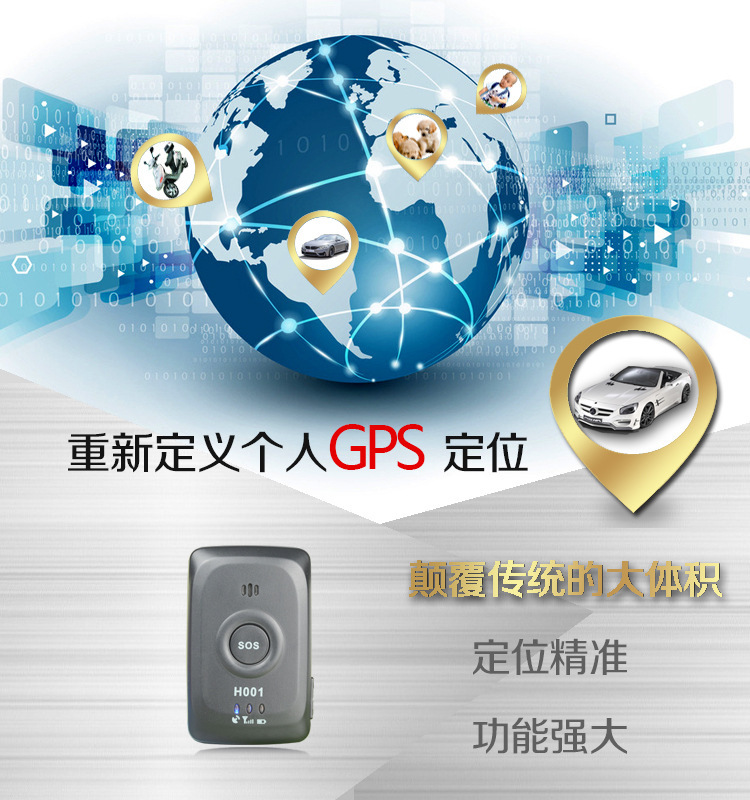
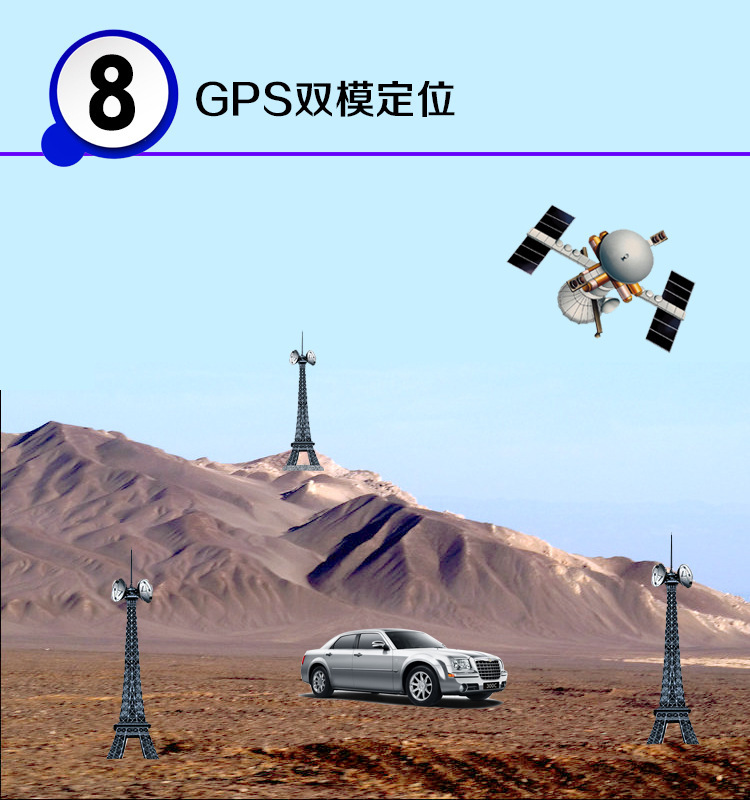
GPS positioning communication device H-001 is a remote positioning and tracking management device composed of GPS and GSM/GPRS. It is a small-sized, high-precision remote positioning device. Based on the GPS satellite, it provides you with accurate and accurate position information under dynamic conditions. The remote positioning device sends longitude and latitude coordinates and positioning information to the service platform and authorized mobile phones. You can use these features to locate and manage your own equipment. The battery standby time is 120 hours (5 days), and the working time is 24 hours.
1. Preparations Before Use
1. Open the packaging box, check if the device model is correct, and whether the accessories are complete. If not, please contact your distributor.
2. You need to insert a GSM/GPRS SIM card. Please activate the service (GPRS data) for the SIM card before use, and ensure that the device's SIM card has sufficient funds.
3. Usage Notes:
Suggestion: The location of the equipment should be as close to the front windshield as possible.
★ Avoid placing the device together with the source of emission, such as rear-view radar, anti-theft devices, and other in-car communication equipment;
★The device is equipped with a GSM antenna and a GPS antenna. When installing, ensure that the GPS receiving face is pointed towards the sky (the one with the signal indicator light is the GPS receiving face), and there should be no metal objects blocking above.
★If the windshield is attached with a metal insulation layer or heating layer, it will reduce the GPS reception signal, causing the GPS to malfunction. Please replace the equipment and install it in a different location.
II. Product Function Key Diagram:
Section 3: Functionality and Operation
The use of the SMS command follows the coverage method, which means that for the same function setting, the last effective command takes precedence.
1. Insert SIM Card: There is a SIM card slot on the side of the machine. Insert the SIM card accurately according to the instructions on the machine. After inserting the card, the indicator light will turn on. The meaning of the indicator light is as follows:
● During the initialization process, all three indicator lights are continuously lit. After the initialization is complete, the device enters a sleep mode, and all three lights turn off.
● Work status: Blue, yellow, and red lights flash alternately to represent standby mode;
●GPS status blue LED slow flash represents that the device has been located, while fast flash represents that it has not been located.
●GPRS status yellow LED slow flash represents connected to the server, fast flash represents not connected to the server;
● The red LED blinks slowly to indicate normal voltage, and flashes rapidly to indicate low voltage requiring charging (for detailed battery level, please log on to the platform or check the mobile client to view the remaining battery percentage). The platform will also issue an alarm when the battery is low to remind you; the charging status remains on continuously.
● Slow flash twice a second, flash twice a second
Shutdown: RemoveSIMThe card automatically turns off.
2. Set the authorization code: The authorization code is used for the SMS control setting function, and unauthorized numbers cannot achieve all SMS setting functions. Send the SMS '0000#password#phone number#' to the SIM card number on the device, and the device will reply with a successful addition of the authorization code. The default password of the device is 123456. If you want to set multiple numbers, you can send the SMS '0000#password#phone number#phone number#phone number#'. The maximum number of numbers that can be set is 7.
Delete all authorized numbers by sending a text message '0000#123456#mobile number' to the SIM card number on the device.
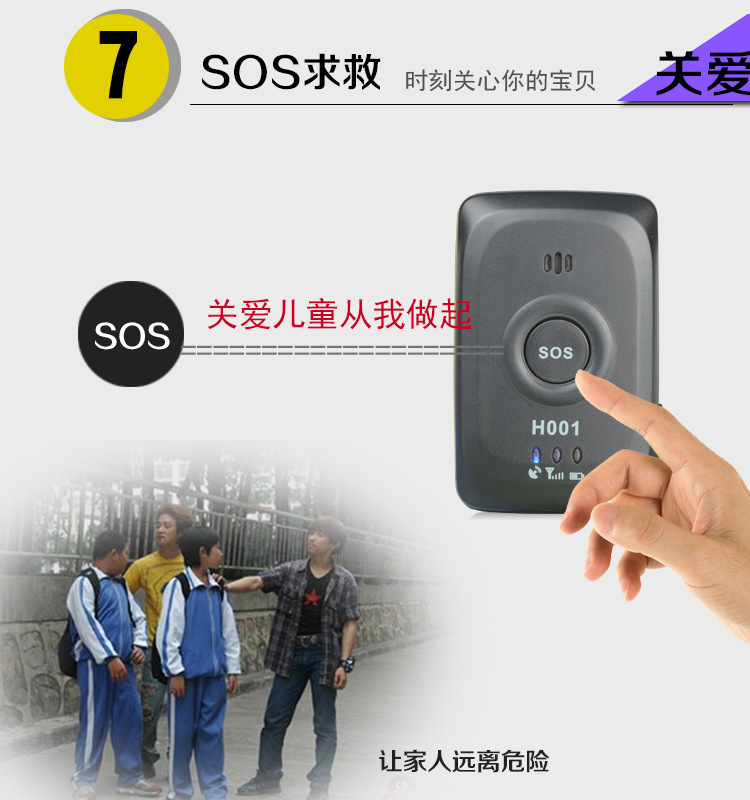
3. SOS Emergency: Press the large circular SOS button in the middle of the device for 3 seconds to dial the authorized number in a loop. If the phone is answered in the middle, it will stop dialing. If there is no answer, it will continue dialing until the end of the round. At the same time, send an alarm notification to the APP.
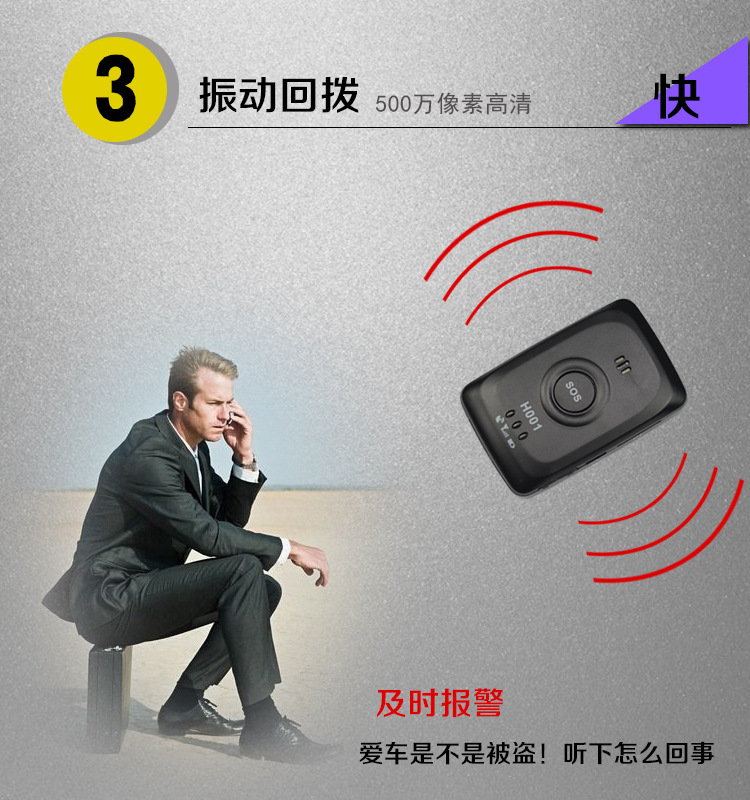
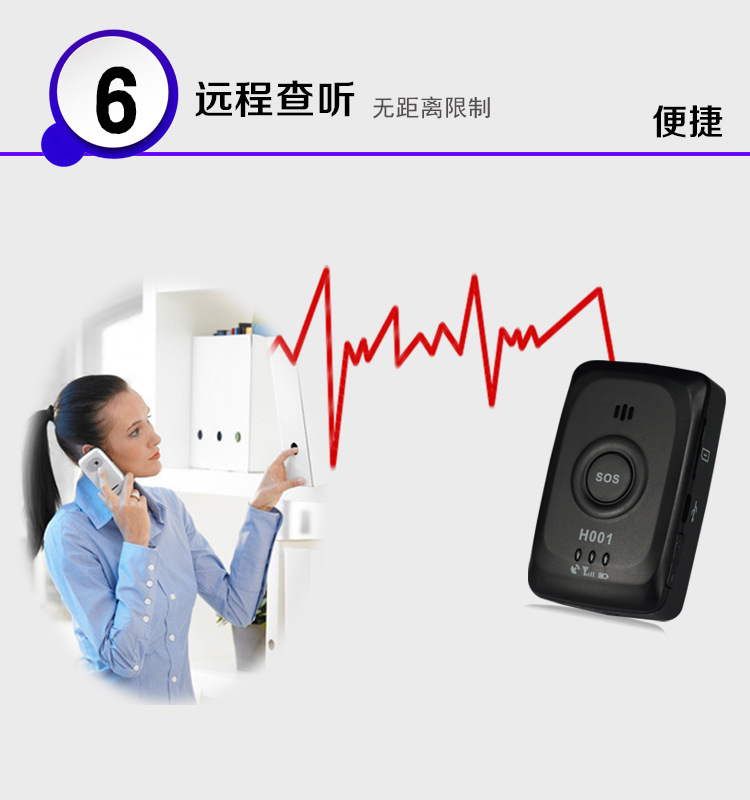
4. Vibration Alarm: Send a text message command '6666#' to the device's SIM card number, and the device will reply, indicating that the vibration alarm binding has been successful. When the device is moved or vibrates, it will call back to the bound mobile phone, enabling the function of remote audio pickup. To cancel the binding, send a text message command '6666##' to the device's SIM card number, and the device will reply, indicating that the vibration alarm has been canceled.
5. Voice-activated alarm: Send a text message command '7777#' to the device's SIM card number, and the device will reply, "Voice-activated alarm is bound." When the noise around the device exceeds 60 decibels, the device will call back to the bound mobile phone, enabling the function of remote audio pickup. To cancel the binding, send a text message '7777##' to the device's SIM card number, and the device will reply, "Voice-activated alarm is cancelled."
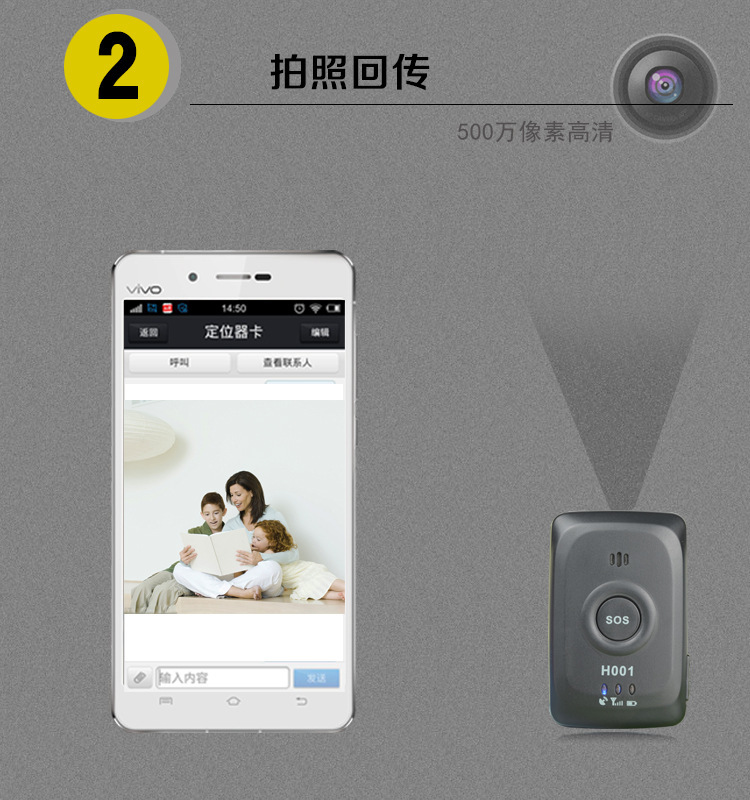
6. Photo Transmission: Send a text message command '8888#' to the device's SIM card number, and the device will reply with a MMS containing a photo in a few moments. The photo will be taken from the front of the device's camera.
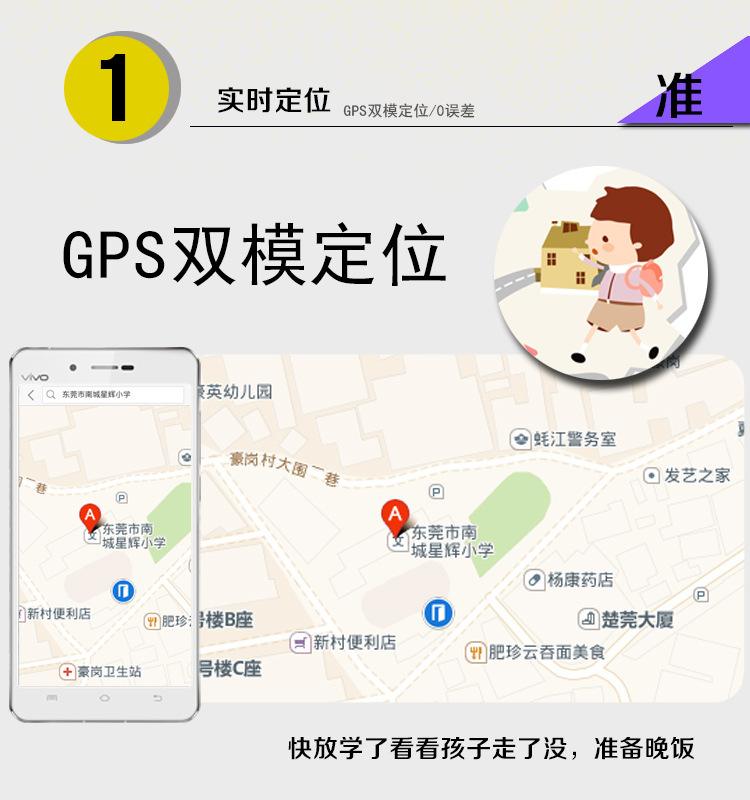
7. Real-time Location: Send a text message command '9999#' to the device's SIM card number, and the device will reply with a text message containing a URL link and the battery percentage shortly. You can view the current location of the device by clicking the URL link, and the battery percentage represents the remaining battery life.
8. Battery Level Check: To check the battery level, please refer to the previous message or check the location function on the APP.
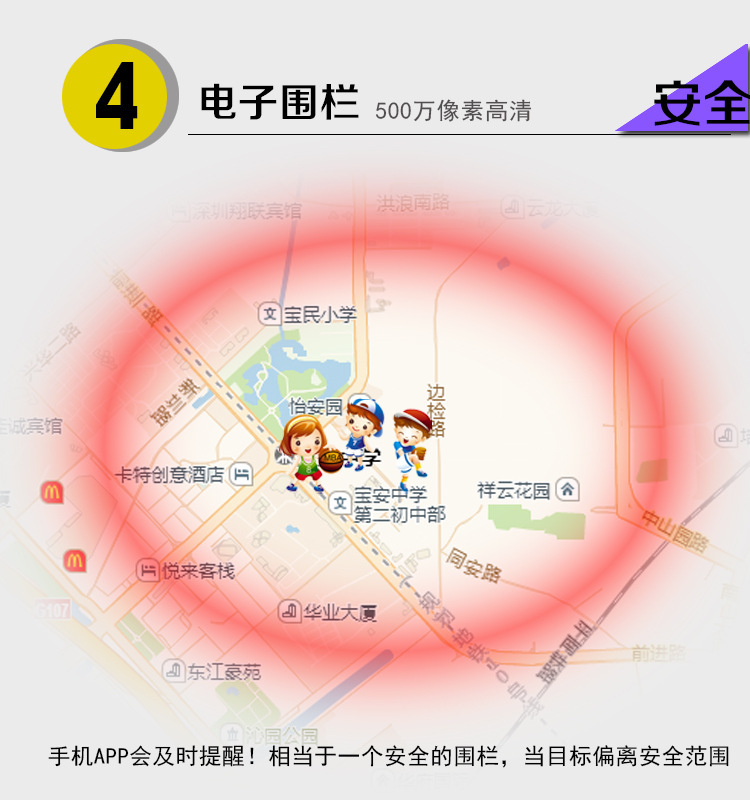
9. Fence Alarm: Send a text message command '3333#distance#' to the device's SIM card number, and the device will reply, "Fence alarm is enabled." For example, sending '3333#500#' means that when the device's location exceeds the 500-meter radius of the set fence, an alarm message will be sent to the APP and the computer. To cancel the fence alarm, you can send a text message command '3333##'.
10. Speeding Alert: Send a text message command '2222#Speed#' to the device's SIM card number, and the device will reply, "Speeding alert is enabled." For example, sending '2222#100#' represents that when the speed exceeds 100km/h, an over-speed alert message will be sent to the APP and the computer. To cancel the speeding alert, you can send a text message command '2222##'.
11. Reboot the device: Send a text message command '1144#123456#' to the device's SIM card number, the device will reboot and respond, 'Rebooting in progress.'
12. Restore to factory settings: Send a text message command '1122#' to the device's SIM card number, and the device will restore to factory settings and reboot.
13. IMEI Query: Send a text message command 'IMEI#' to the device's SIM card number, and the device will reply with a digital message containing the machine's IMEI code.
14. IMEI Setup: Send a text message with the command 'IMEI#15-digit number#' to the device's SIM card number, and the device will reply with a message indicating the setup is successful.
15. Password Setup: To change the password, send a text message with the command '1133#Old Password#New Password#' to the device's SIM card number; to restore the initial password, send a text message with the command '1133#' to the device's SIM card number; the default factory initial password of this device is 123456.
16. Remote microphone pickup: Authorized bound numbers can directly dial the device's SIM card number to achieve one-way listening function for microphone pickup.
17. Language Switch: Sending the SMS command '0086#' represents switching to Chinese; sending the command '0044#' represents switching to English; the device's factory settings are defaulted to Chinese.
18. Tracking Query: Send a text message command '11#time#' to the device's SIM card number to turn on tracking query. For example, '11#60#' represents uploading location every 60 seconds, with a range of 10 seconds to 7200 seconds. To turn off tracking query, send a text message command '00#' to the device's SIM card number. The device's factory default setting is to turn off tracking query.
Section 4: Operation Instructions for the APP Client
APP Login
1. You need to manually enter the login information by inputting the device IMEI and the default password 123456 (the IMEI code is located on the side of the machine).
The interface is as follows:
Login completed, enter the main functional interface.
The interface is as follows:
Function Description:
2.Alarm Information:
After various equipment alarms, the client will receive alarm push notifications and can enter the alarm to view the content.
3.定位:Real-time view of the device's location. In the initial interface, select Tracking → Device List to enter the location interface by clicking on the device information. The map interface can display the device's location, and the default upload interval is 10 minutes.
When the icon is for base station positioning, it is GPS positioning. Press to change the map mode.
Press to enter function settings
4、trajectory:Select the replay function on the initial interface to enter the operation. You can check the trajectory within the past 3 months (green lines for GPS, blue lines for LBS).
5.SetSet up the various equipment settings.
Remote Management
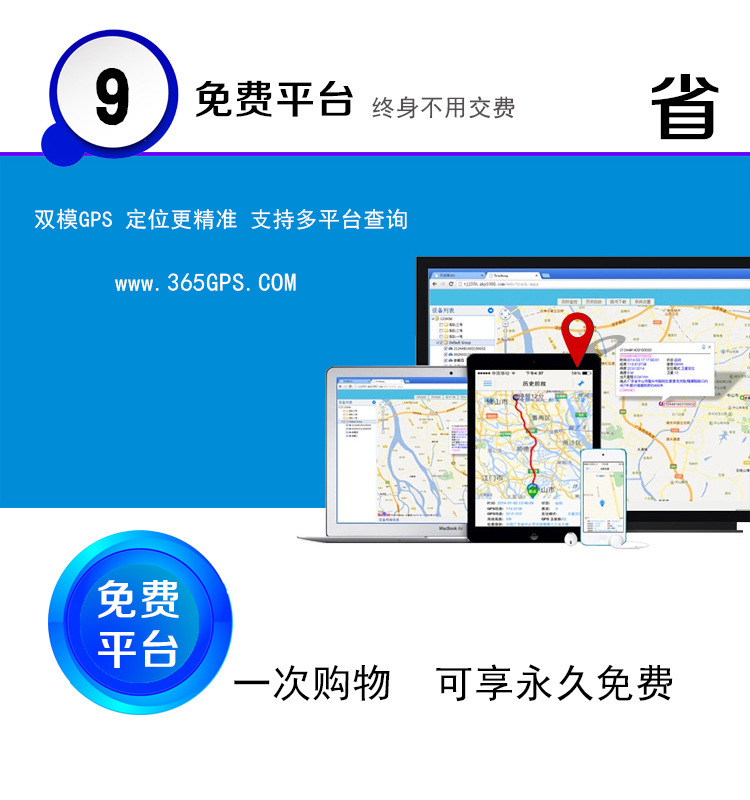
Customers can directly manage and view the location of their devices, historical replay, and set up perimeter functions on their computers. Please log in to the platform using your username or IMEI number at the website www.365gps.net with the default password 123456.
Section Six: Troubleshooting
1. After the initial installation, the platform shows that it has not been started or is not online.
- Check if the device's indicator light is normal, eject the SIM card, and then reinsert it to turn on the device.
- Has the SIM card been activated, and has the GPRS function been enabled?
- Is there GSM signal coverage in the area where the device is located, or in places like basements where the signal is weak? Please use the device in an area with signal.
2. The indicator light is not lit.
-Check if the device is powered on
- Check if the SIM card is correctly inserted
3. The platform has been showing offline status.
- Check the device's indicator lights to ensure they are functioning normally, eject the SIM card, and then reinsert it before turning on the device.
- Check if the SIM card is overdue or has insufficient credit, and if the GPRS function is enabled.
-Try inserting a different SIM card to see if it works.
4. Tracking position not updated
- Observe whether the GPS / GPRS indicator light on the equipment is normal
5. No alarm warning
- Reset the alarm command
If the problem still persists, please disassemble the device and return it to your dealer for repair.
7. Technical Specifications
1. GSM Frequency Range: 850/900/1800/1900MHz
2. Working Voltage: 7-55V DC
3. Working Current:
4. GPS Positioning Time: Cold Start? P38s (fully outdoor) Warm Start? P32s Hot Start? P2s (fully outdoor)
5. GPS Positioning Accuracy: 5 meters
Battery: 3.7V 1300mAh
Working environment temperature: -20°C to +70°C
8. Appearance dimensions: 64 (L) × 41 (W) × 19.5 (H) mm

Service Platform: www.365gps.net
Android application: 365gps
Apple application: 365gps
WeChat: GPS Online Service
Login name: IMEI number,defaultPassword: 123456
QR Code Scanning Entrance
Scan the QR code below to download the Android and iOS mobile client.
Android applications Apple applications


Remote management
Customers can directly manage and view the location of their devices, historical replay, and set up perimeter protection functions through online and mobile platforms.
1. Web
Please log in to the platform at www.365gps.net using your username or IMEI number. The default password is 123456.
2. Android phones
Please visit www.365gps.net/app/365gps.apk
3. iPhone phone
Please download the app at the following link: https://itunes.apple.com/cn/app/365gps/id1068418498?mt=8
Update time:


TOP


