Search history
Clear allSearch by image
XDrag and drop an image here or upload an image
Max 5MB per image
UploadSign In | Join

Search history
Clear allSearch by image
XDrag and drop an image here or upload an image
Max 5MB per image
UploadSign In | Join
X Email Mobile
SHUOFENG ELECTYONIC TECHNOLGY CO.LTD 12yr.
Contacts Diana Chat
Mobile 86-18358005552
E-mail 1048612396@qq.com
1048612396

WhatsApp 8618358005552
Note: US, UK, and EU plugs are not compatible with mainland China's standard electrical plugs. Users with domestic electrical appliances are not recommended to purchase these.
Suitable for use in Taiwan, Hong Kong, Macau, Singapore, Malaysia, the United States, and other regions and countries. Please confirm the electrical plug model before placing an order to avoid unnecessary losses. If you have any questions, please feel free to consult our customer service staff. Thank you for your visit and support!
Product Parameters:
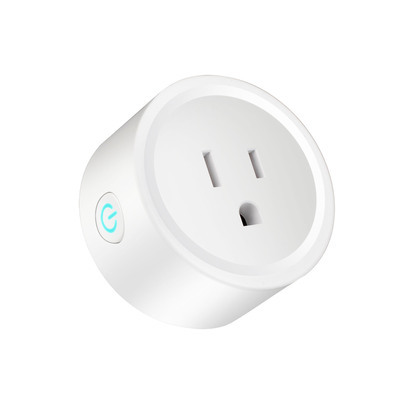
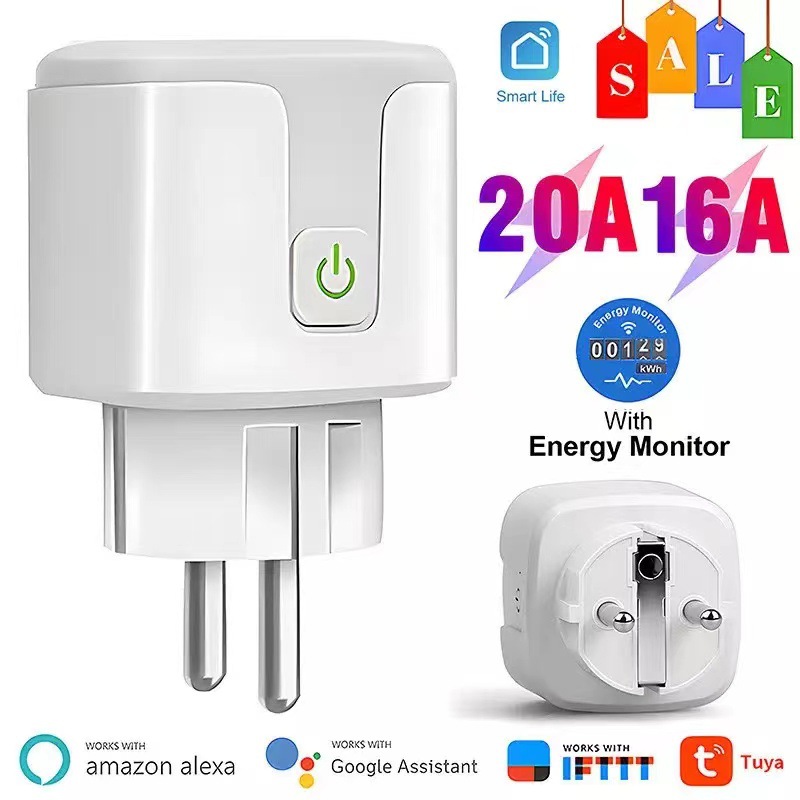
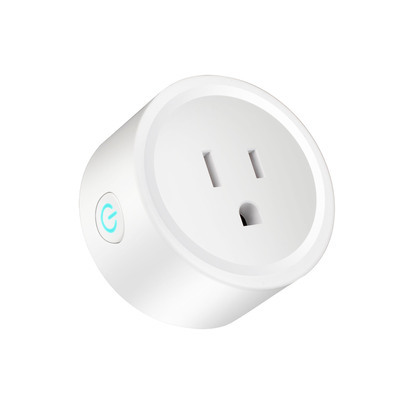
US Specification 10A, 16A, 20A;
Rated Voltage: AC100-240V
Rated maximum power: 1000W/10A and below for 110V areas, 1300W/20A and below.
For areas with 220V voltage, devices with a power of 2000W/10A and 3000W/20A or less are suitable. However, due to the shell's heat resistance limit, these devices are not suitable for high-power equipment and should not be operated beyond their rated capacity.
Product size: 54*54*51mm
Weight: 0.07kg
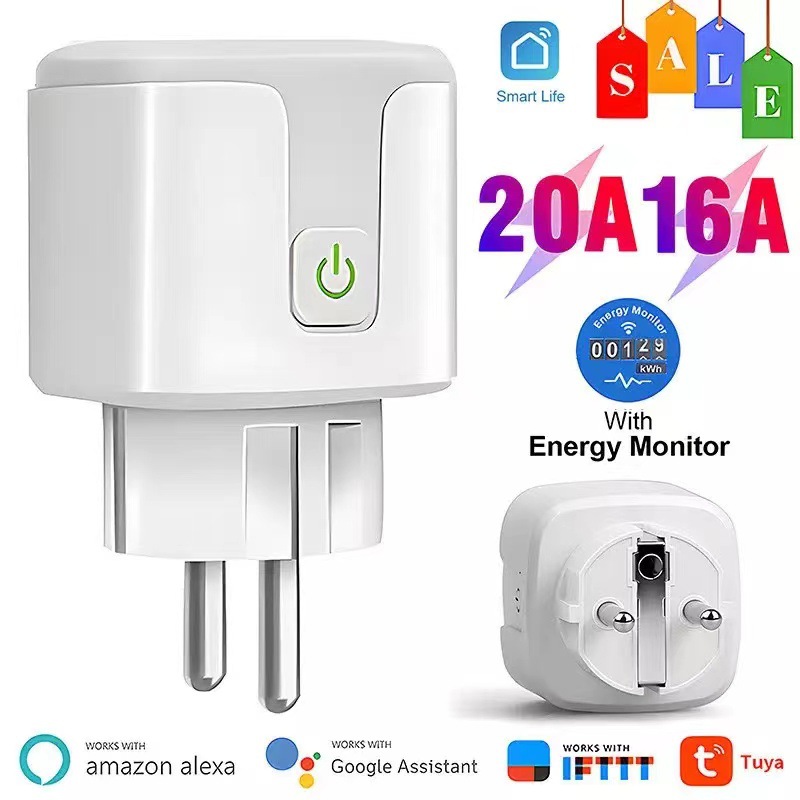
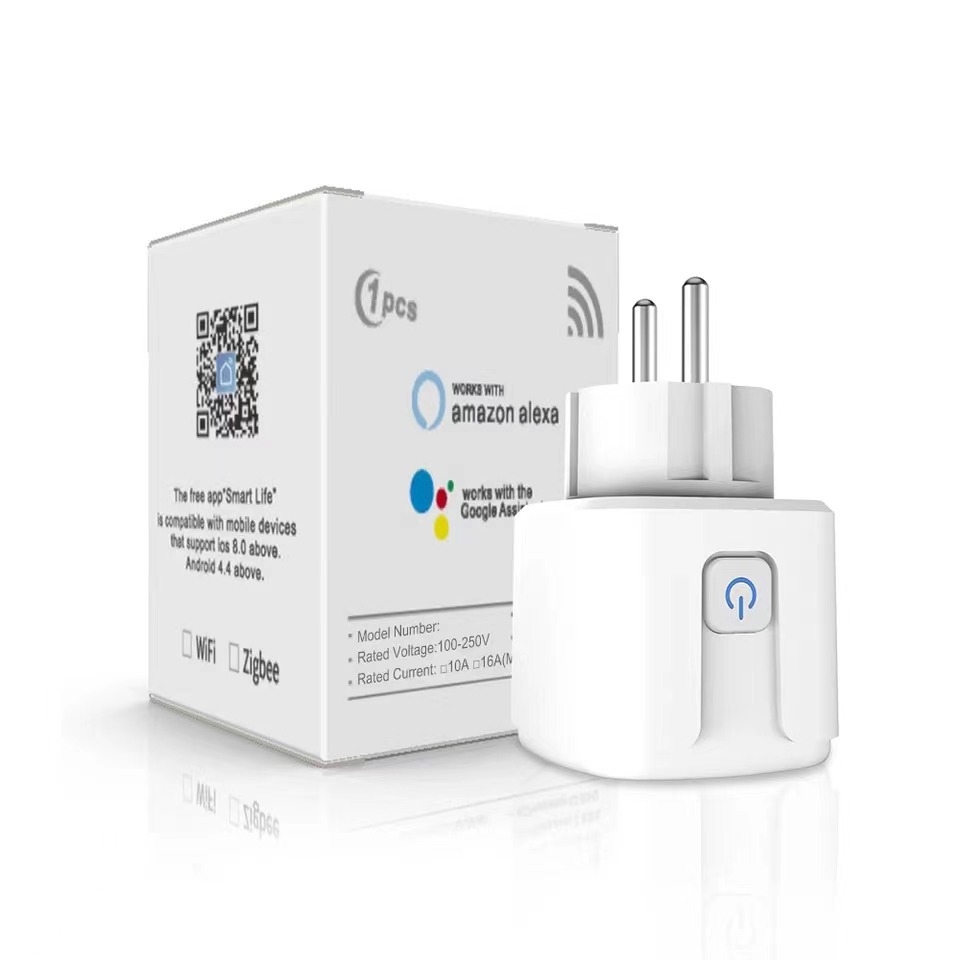
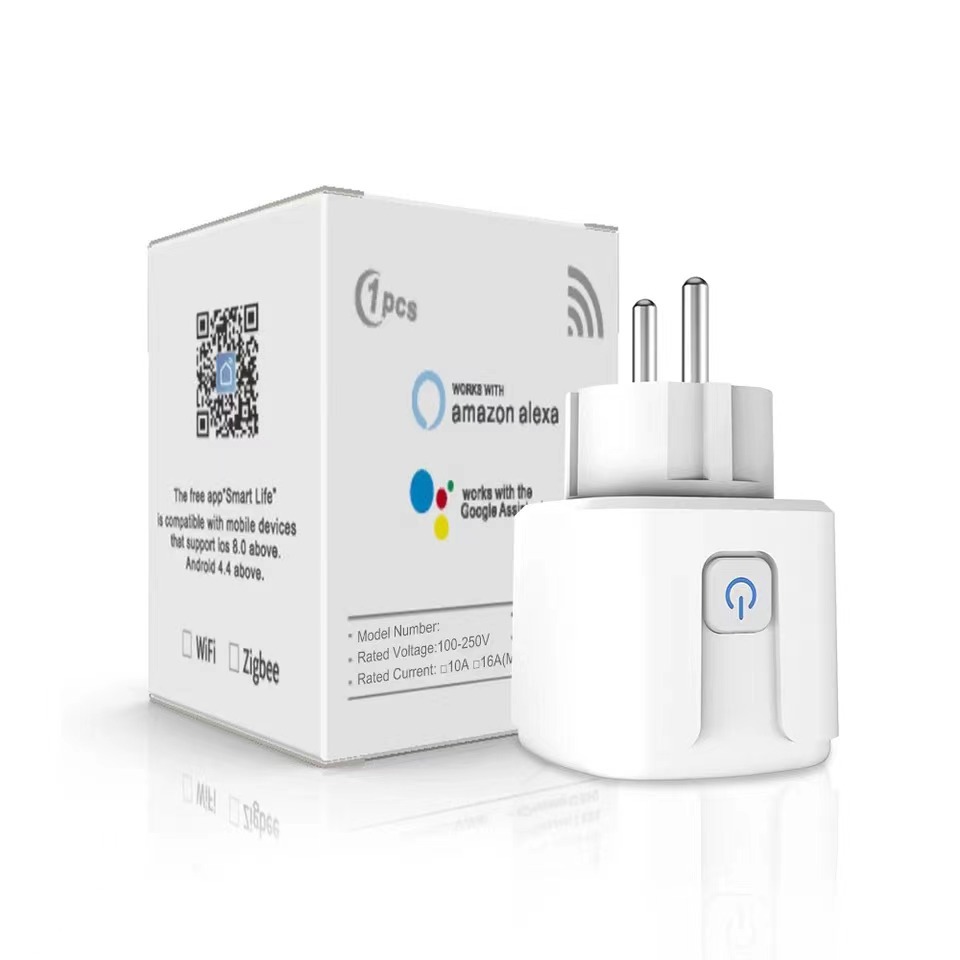
European standard 16A
Product size: 50*50*84mm
Weight: 0.09kg
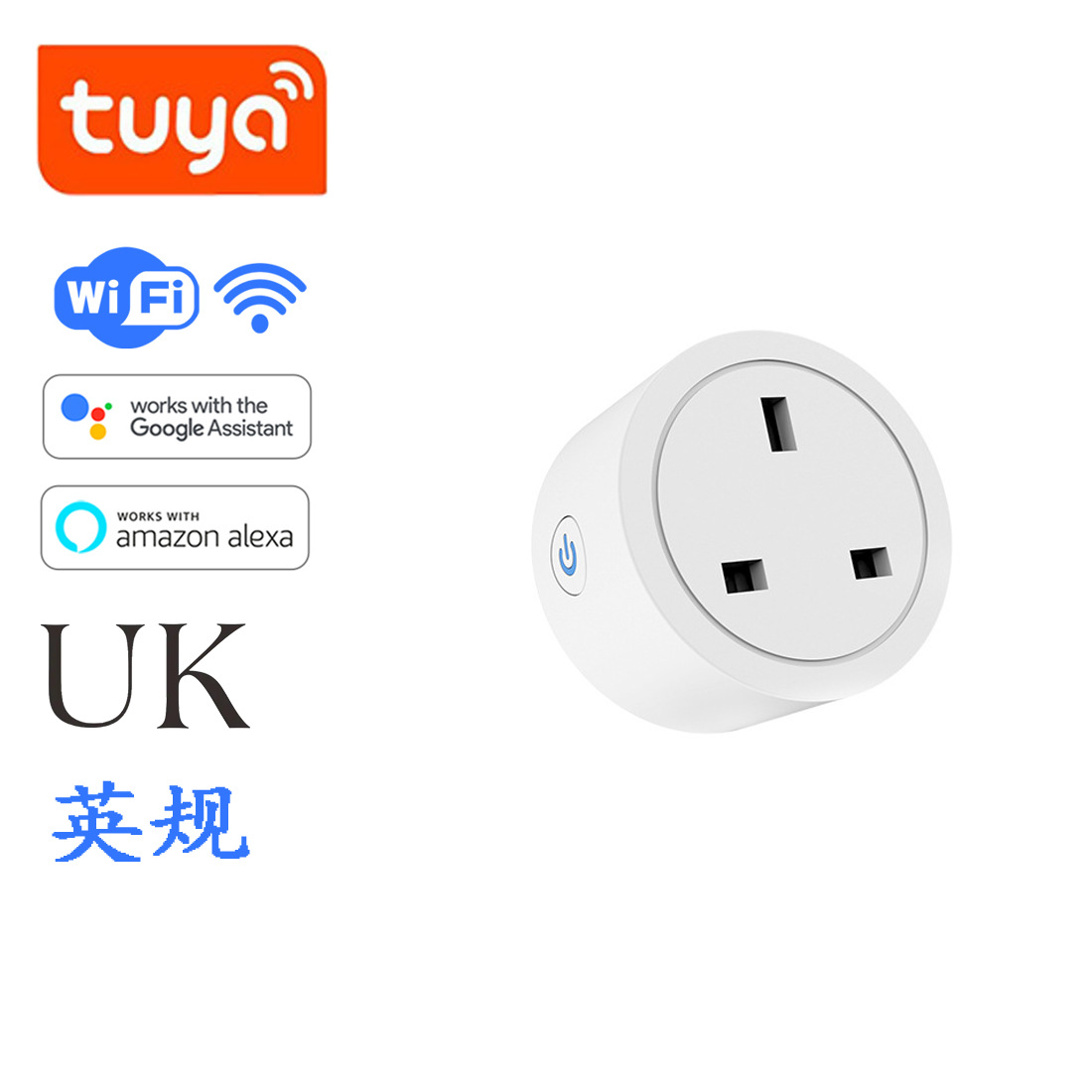
British Standard 16A
Product size: 58*58*55mm
Weight: 0.08kg
Input Voltage: AC100-240V 50/60Hz
WIFI Standard: 2.4GHz 802.11 b/g/n
Indicator Light: Blue light indicates switch and network configuration.
Shell Material: PC+ABS Fire Rating V0
Working temperature: -20-50°C
Certification Standard: CE/ROHS
Smart graffiti or smart life APP can connect to the WiFi router to remotely control the phone.
Supports Alexa, Google Home, Tmall Genius Xiao Ai and other intelligent voice control.
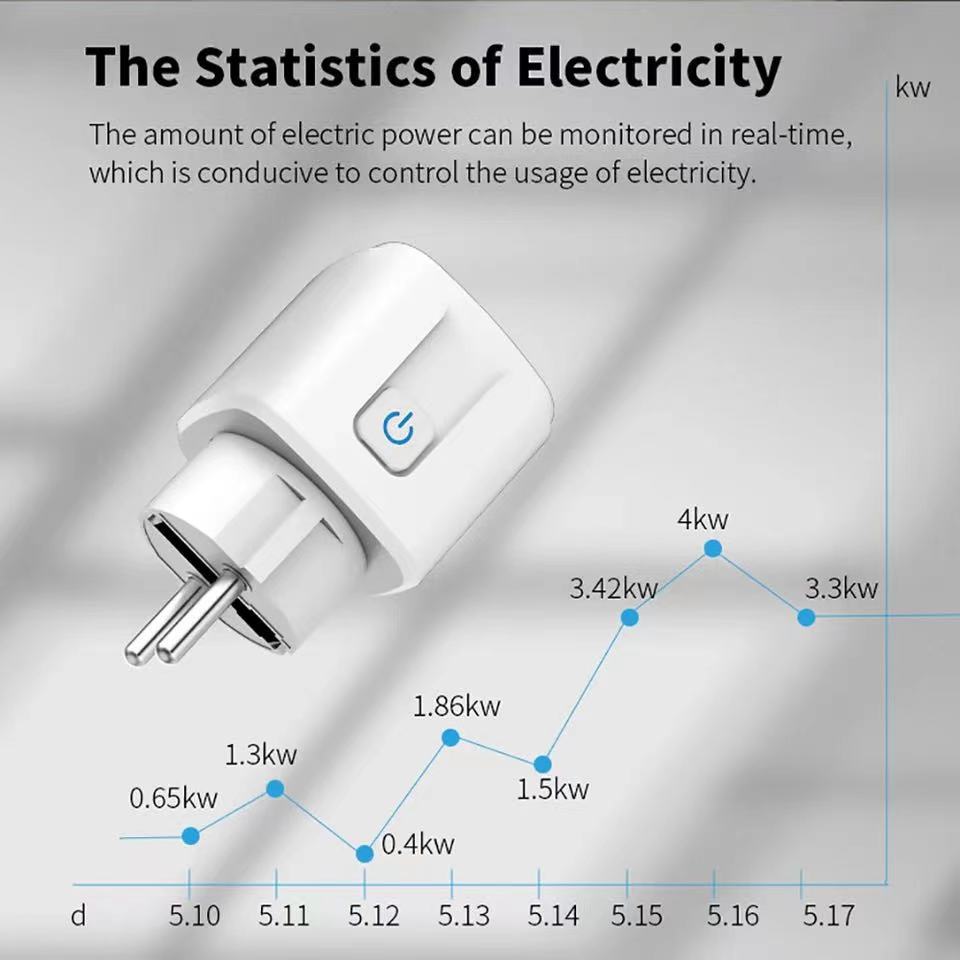
Remote control via mobile APP, intelligent scheduling, intelligent scene linkage, power consumption statistics, and sharing control
APP pairing network operation steps
A. One-click Configuration
1. Please plug the mini socket into the power source, and wait for the blue indicator light to flash rapidly, or press the power button for 5 seconds until the blue indicator light flashes rapidly (flash 2 times per second).
2. Connect your phone to a WiFi network and confirm that it is successful.
3. Open the APP, click the add icon in the upper right corner of the device list, and then select "Socket" to enter the configuration device interface.
4. Click "Please confirm the indicator light is flashing rapidly," enter the current WiFi password of your mobile phone, and then click "Confirm."
5. Wait for configuration, after configuration is successful, click "Complete" to jump to the function interface of the socket.
2. AP Configuration
AP configuration is set as an auxiliary configuration method. If the one-click configuration fails, you can use AP configuration. The method is as follows:
1. Press and hold the power button for 5 seconds, and the indicator light will enter a slow flashing state (on for 2 seconds, off for 2 seconds).
2. Open the APP, click the add icon in the upper right corner of the device list, and then choose "Socket" to enter the configuration device interface. Click the upper right corner.
Enter the AP configuration interface in 'Compatibility Mode'.
3. Click 'Please confirm the indicator light is blinking slowly' and enter the current WiFi password of your mobile phone, then click 'Confirm'.
4. Click "Go to Connect" to jump to the WIFI list interface, select "SmartLife-XXXX" and then click "Connect".
5. Tap the back button on your phone, wait for the configuration, and after the configuration is successful, tap "Finish" to jump to the socket functionality interface.





Update time:


TOP