Search history
Clear allSearch by image
XDrag and drop an image here or upload an image
Max 5MB per image
UploadSign In | Join

Search history
Clear allSearch by image
XDrag and drop an image here or upload an image
Max 5MB per image
UploadSign In | Join
|
v5 gaming controller
V5游戏手柄 |
CN¥ 0.0 |
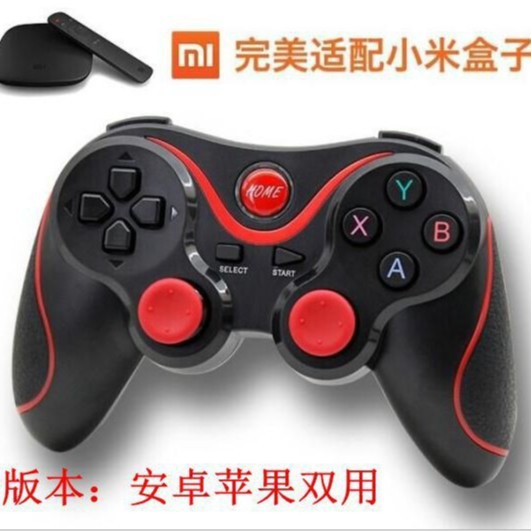
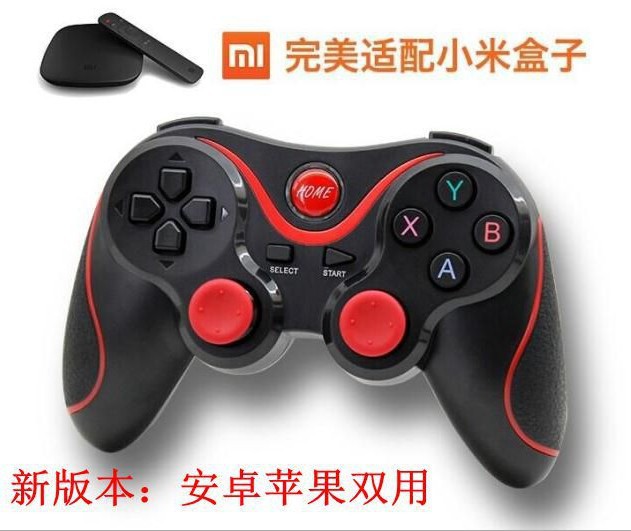
The factory product supports Android and iOS game controllers, as well as games like Honor of Kings and Crossfire (no drivers or root required). It can be used via Bluetooth direct connection, and custom LOGO options are also available.
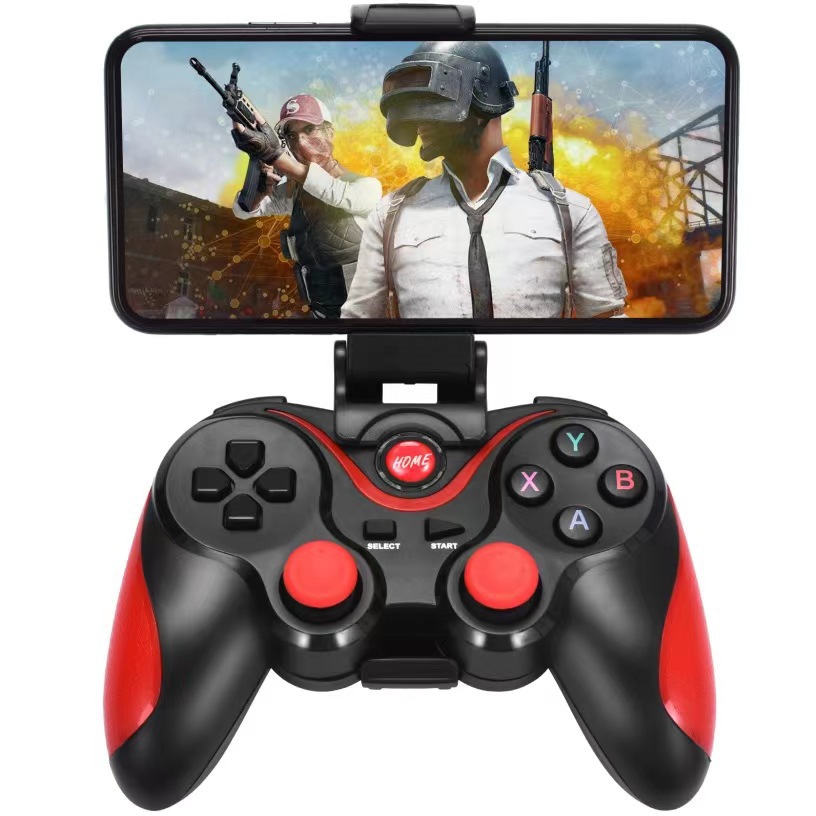
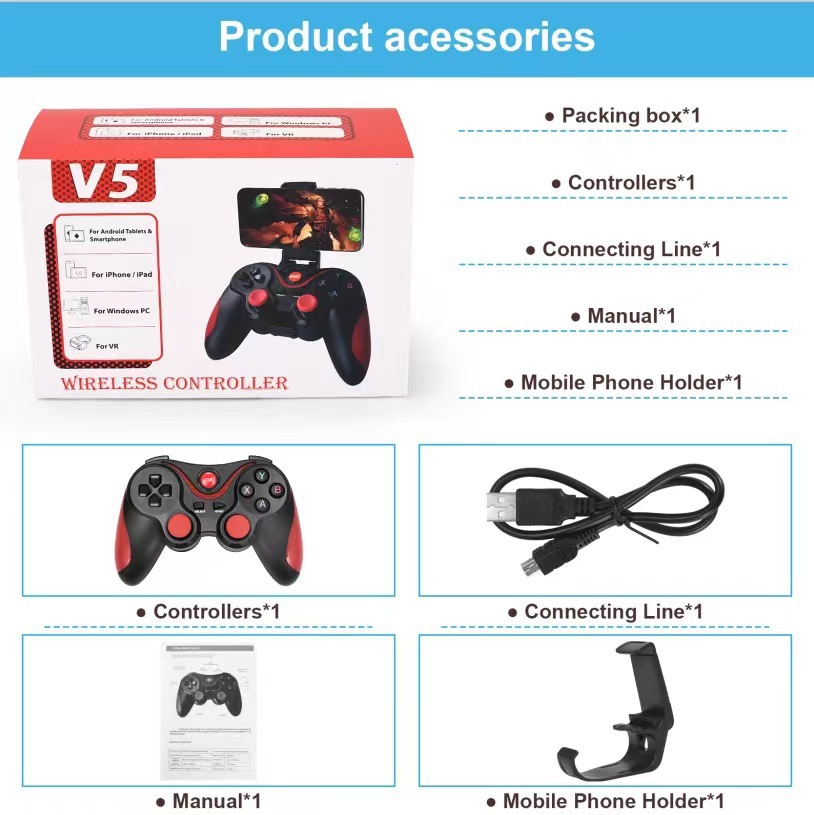
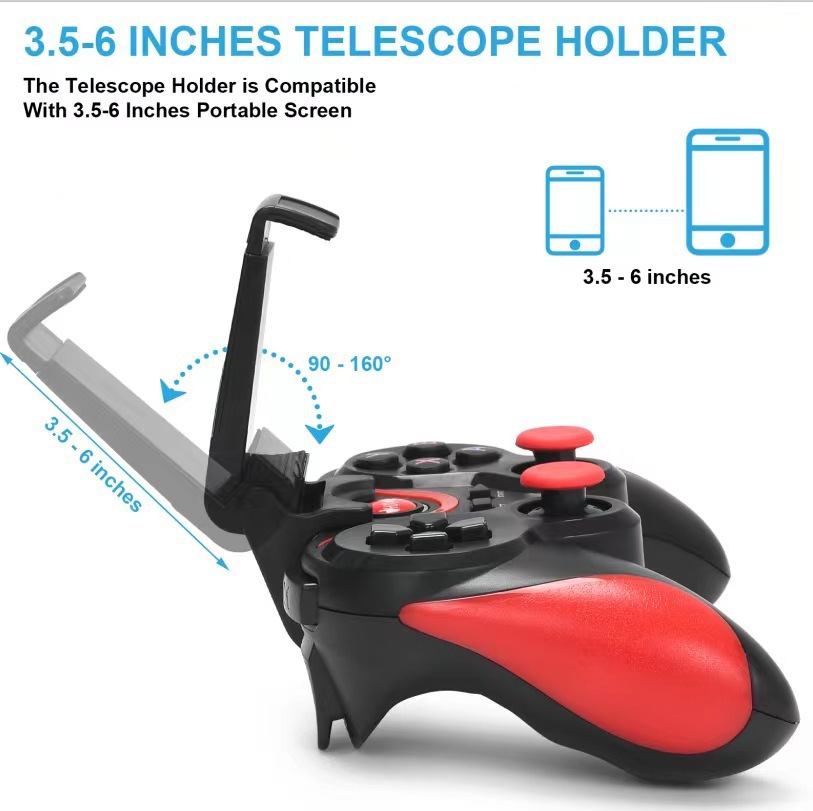
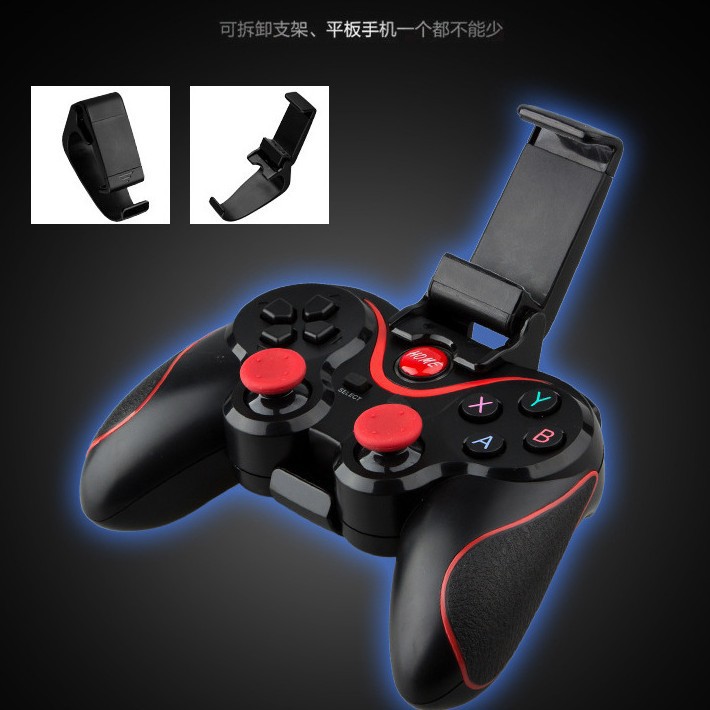
Product packaging notes: 1 x T3 Android Bluetooth controller, 1 x charging cable, 1 x packaging box. Instruction manual, stand (if connecting to functions on platforms such as PS3 or PC, a separate Bluetooth adapter is required)
This product: No driver required, no root needed, direct connection. Customizable colors. The above price includes stand, manual, data cable, handle, and color box.
Product Details
Android Device Instructions:
1. Press the A key and HOME key simultaneously for 2 seconds, then the LED1 indicator light will flash rapidly (already connected; you can directly press the HOME key to reconnect).
2. Enable the Bluetooth function on the Android device and click “Scan”;
3. When a device named “GamepadPlus V3” is found via search, select pairing and connection;
4. Connection successful; LED1 indicator light remains on;
5. Directly playable games: Honor of Kings, Peace Elite, Infinite Duel, Wildlands (except for games that have changed their rules);
Up key + HOME key: Select Honor of Kings; Right click + HOME key: Select Peace Elite;
Down key + HOME key: Select Infinite Battle; Left key + HOME key: Select Wild Hunt; Default is Honor of Kings.
6. Using the ShootingPlus V3 App tool to adjust key settings allows playing more games;
A. Install the Android version of the ShootingPlus V3 App
For overseas users, please search for “ShootingPlus V3” in the Google Play Store and download it;
Or search for “ShootingPlus V3” and download it from various Android app stores on mobile phones (such as Huawei, OPPO, VIVO, and Xiaomi).
B. How to customize the keys for the Android ShootingPlus V3 app
a. Connect the Bluetooth, install the ShootingPlus V3 App, and push the app to the background.
b. After directly launching the game, click the “V3” floating icon on the screen or press the “START” button on the controller to enter the custom key settings interface of the app.
c. Drag the key layout icon within the interface to the desired position in the game. (Clicking the icon allows you to select its properties)
d. Click “Save” on the menu bar, then select “Confirm” to save.
e. Click “Close” on the menu bar, or press the “START” key again (or click the “V3” floating icon) to exit the key modification interface.
f. In the game, you can press the “SELECT” button on the controller to access the pre-set key mapping guide.
C. After installing the ShootingPlus V3 App, you can also download the preset key mappings directly from the “Cloud Key Mapping List” on the app’s main interface.
7. For MediaTek (MTK) phones, press the X key and HOME key to enter standard Android mode for use with game centers (such as Grape Game Center, Game Manager, Octopus, etc.).
Note: If you enter the wrong Apple mode, please cancel the Bluetooth pairing first before re-pairing to enter Android mode.
iOS Apple Device User Guide:
1. Press the Y key and HOME key simultaneously for 2 seconds, then the LED2 indicator light will flash rapidly (already connected; you can directly press the HOME key to reconnect).
2. Turn on the Bluetooth function on the Apple device, and click “Scan”;
3. When a device named “GamepadPlus V3” is found via search, select pairing and connection;
4. Connection successful; LED2 indicator light remains on continuously;
5. Directly playable games: Honor of Kings, Peace Elite, Infinite Duel, Wildlands (except for games that have changed their rules);
Up key + HOME key: Select Honor of Kings; Right click + HOME key: Select Peace Elite;
Down key + HOME key: Select Infinite Battle; Left key + HOME key: Select Wild Hunt; Default is Honor of Kings
6. Supports iPhone phones or iPad tablets with iOS versions 11.3 to 13.3.1;
7. Using the ShootingPlus V3 App tool to adjust key settings allows playing more games;
A. For the Apple version of the ShootingPlus V3 app, please search for “ShootingPlus V3” on the App Store and download it:
B. How to customize the keys for the Apple ShootingPlus V3 App
a. Connect the Bluetooth, and install the ShootingPlus V3 App.
b. Launch the game and take screenshots within the game (for iPhone X/MAX, simultaneously press the power button and the volume + button);
Other iPhone models require simultaneously pressing the "power button" and the physical "HOME button").
c. Open the ShootingPlus V3 app, click the “V3” floating ball or press the controller’s “START” button to enter the app settings interface.
d. Long-press the empty area of the screen to start loading game screenshots. Click to select images for game screenshots (b. those used for operation).
During the image selection process, there will be a reminder to access the photo album. Please allow access by clicking “OK”.
e. Drag the key layout icon within the interface to the desired position in the game. (Clicking the icon allows you to select its properties)
f. Click “Save” on the menu bar, then “Confirm” to save.
g. Click “Close” on the menu bar or press the “START” key again to exit the key interface.
C. After installing the ShootingPlus V3 App, you can also download the preset key mappings directly from the “Cloud Key Mapping List” on the app’s main interface.
Note: If you enter the wrong Android mode, please cancel the Bluetooth pairing first before re-pairing to enter the Apple mode.
Handle charging, sleep, and wake function:
1. When the controller is charging in the powered-off state (powered on/off by pressing the HOME button), LED4 indicator light flashes slowly; it stays on continuously after full charge. Charging occurs while connected via Bluetooth.
At that time, LED4 indicates a slow blink, and it stays on continuously after being fully charged.
2. Sleep/Wake function: The game controller enters sleep mode if not used for 5 minutes. To use it again, press the HOME button to wake it up and resume connection.
3. When the battery level is low, LED4 indicator light flashes rapidly to indicate this.
Wired USB mode operation instructions and precautions:
1. Hold down the R1 button and then plug in the USB cable; the controller will automatically recognize the device connected (no HOME button is required to power on in wired mode).
2. After inserting the USB, the LED light for the corresponding mode flashes rapidly, and after successful USB recognition, the LED light for the corresponding mode stays on continuously;
3. After USB recognition is successful in PS3 and Switch modes, the indicator light will automatically be assigned to the channel specified by the console (Channels 1, 2, 3, and 4 correspond to LED1).
LED2, LED3, LED4).
Basic Features
Supports three connection methods
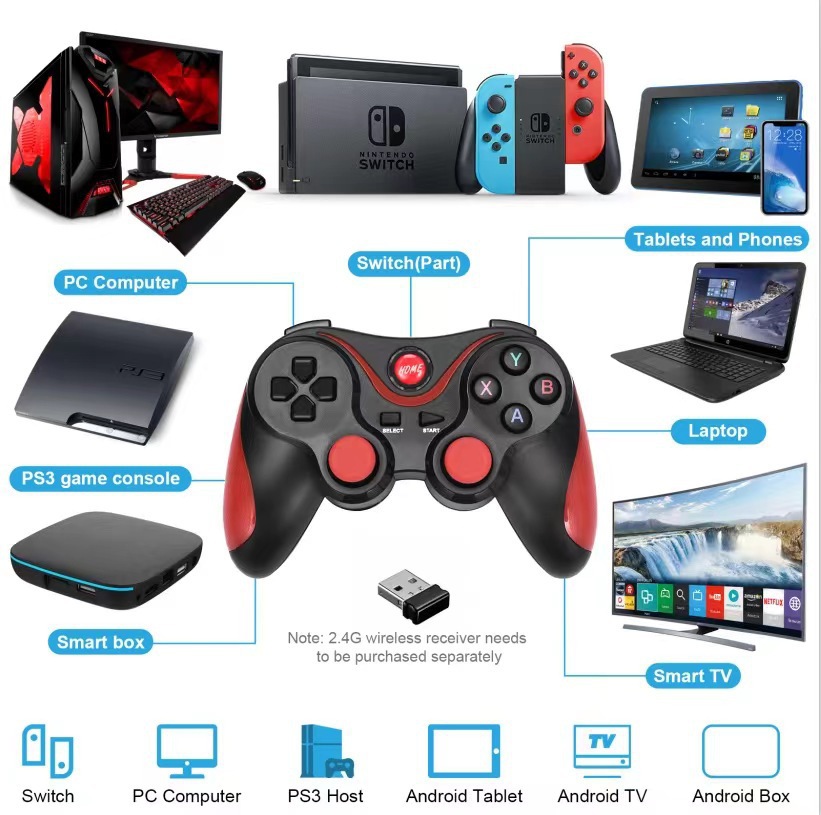
1. Bluetooth connection: A single handle can connect to phones, tablets, TVs, boxes, etc. that have Bluetooth functionality;
2. Wireless connection: The controller with a receiver can be connected wirelessly to desktop computers, TVs, boxes, etc., without Bluetooth functionality.
3. Wired connection: A single handle is connected to a desktop PC, TV, box, etc. via a USB cable.
multifunctional
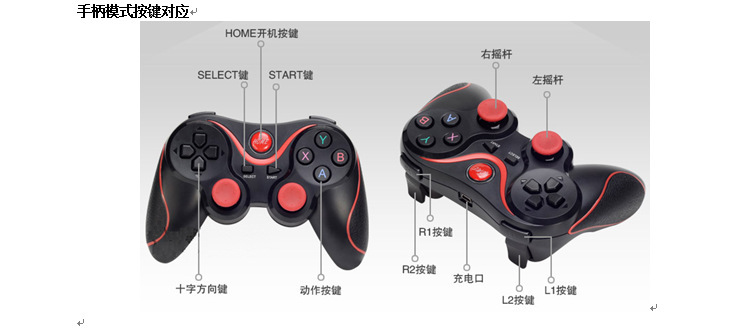
1. Support for the controller function;
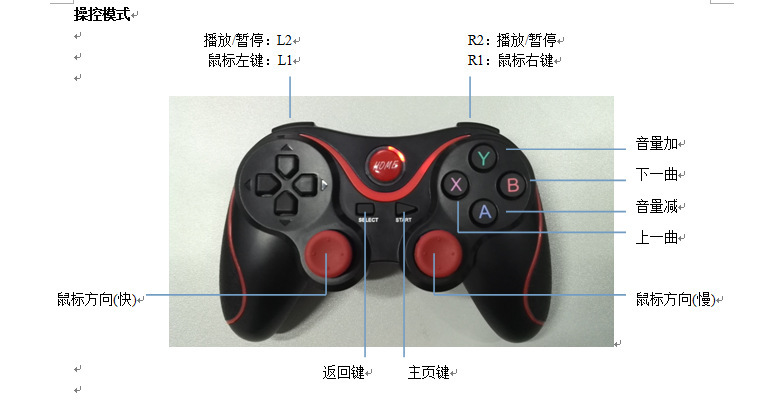
2. Supports mouse multimedia functions;
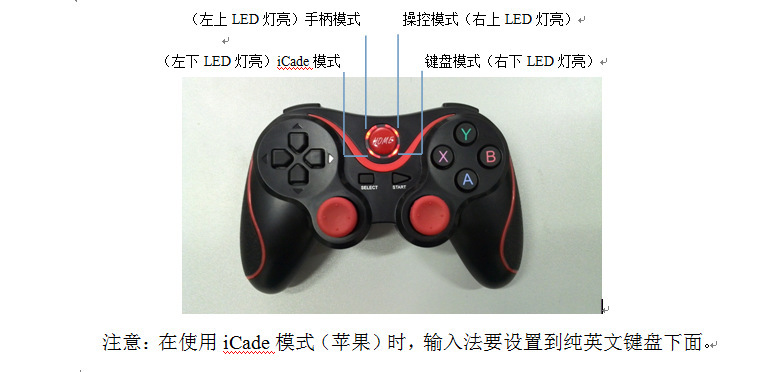
3. Supports iCade functions;
4. Supports operating functions of third-party apps for iOS (such as new games).
Bluetooth Connection Function Operation
Update time:


TOP